Overview
Login form is gateway for users to sign-in to your site. You can make multiple login forms but in most cases you may need only one.
It’s very similar with Registration Form to create Login Form.
Getting Started
1) Create Login Form
Navigate to Members > Forms page and click ‘Add New’ and fill the title of form.
Select form type
Below the form title, you will see the ‘Form Type’ widget which is where you select the type of form you are wanting to create. And select ‘Login Form’ from list.

Settings
Show “Remember Me”
Allow users to choose If they want to stay signed in even after closing the browser.
Forgot Password Link
Show the forgot password link in login form
Extra Button
Use secondary button on login form. (Usually Registration Button)
With this option, you can decide whether or not to show the extra button on the login form. By default, the extra button is turned off.
Extra Button Text
Extra button text on login form. Default text is “Register”
Extra Button URL
Extra button url. Default value is default registration page url.
Submit Button Text
You can change the submit button text. For login forms the default text is “Login” but you can change this to anything you like.
Save your draft form
Save your form to proceed with field group

Create and link field groups to the form
Please refer to Link Field Groups to Form document.
Confirm the form is linked
Now you can see the linked field group from bottom of edit from screen.
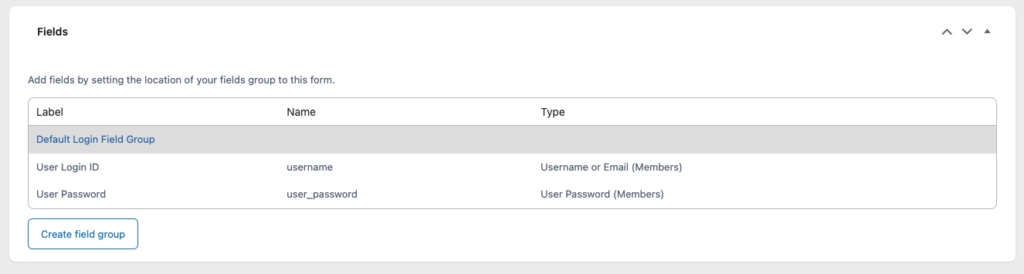
Now you can apply this form refer to “Insert Members Form to Page“